Showing posts with label aperture. Show all posts

Tuesday, March 20, 2018

DigPhotog: Exposure and Histograms (W11-P1) Sp18


In the field of statistics, a histogram is "a graphical representation of the distribution of data."  The histogram below shows the distribution of black cherry trees according to height.  Note that there are many trees between 70 and 80 inches tall and a few that are 60-65 inches tall and even fewer that are 85-90 inches tall.


Graphic credit: Mwtoews. Used under Creative Commons

In the field of photography, a histogram is defined in a similar way.  It is a graphical representation of data.  But, what data?  A histogram for a photograph is "a graphical representation of the tonal distribution in a digital image.  It plots the number of pixels for each tonal value."  The tones in a photograph range from shadows (the darker areas or pixels) to midtones (grey areas or pixels) to highlights (the white or bright areas of the photograph).  A photograph which is underexposed, for example, would have lots of shadow.

For visuals and further discussion see the videos below.


A key question: How could you use a histogram to determine if your photos have proper exposure?


A good app for showing the histogram on both iOS and Android is called PicsPlay.  Get the free version first.


Share this post with others. See the Twitter, Facebook and other buttons below.
Please follow, add, friend or subscribe to help support this blog.
See more about me at my web site WilliamHartPhD.com.


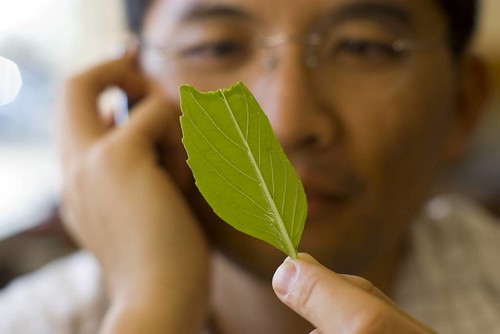


Tuesday, February 27, 2018

DigPhotog: "Blurry" Background Photos - Bokeh (W8-P2) [VID] Sp18


Now that we've talked about depth of field, let's throw in a related concept.  This concept ties the technical concept of depth of field back to the artistic discussion of photo composition covered earlier.

What is bokeh and what does it have to do with depth of field?

Bokeh is "the aesthetic quality of the blur produced in the out-of-focus parts of an image produced by a lens. Bokeh has been defined as "the way the lens renders out-of-focus points of light" ... Bokeh occurs for parts of the scene that lie outside the depth of field" (Wikipedia).


You can create bokeh simply by paying attention to depth of field and adjusting aperture settings.  However, you can carry the concept further and create shapes in the out of focus parts of a photography.  See video below.  Note that there are smartphone apps for this as well.


"Differences in lens aberrations and aperture shape cause some lens designs to blur the image in a way that is pleasing to the eye, while others produce blurring that is unpleasant or distracting—"good" and "bad" bokeh, respectively" (Wikipedia).

So, how would you judge good or bad bokeh?  Go back to the rules of composition covered earlier.  For example, is the rule of simplicity important here?  Colors important here?  What would be a list of rules of composition that would be relevant to judging bokeh?


If you are curious, check out 40 Beautiful Examples of Bokeh Photography.


Share this post with others. See the Twitter, Facebook and other buttons below.
Please follow, add, friend or subscribe to help support this blog.
See more about me at my web site WilliamHartPhD.com.


DigPhotog: "Blurry" Background Photos - Depth of Field, etc. (W8-P1) [VID] Sp18


You like those "blurry" background photos?  Would you like to be able to take this type of photo?

The beauty of Depth of Field
Photo by yashh .   Used under Creative Commons.

If so, you'll need to control the depth of field in your photograph and in order to control depth of field, you'll need to better understand aperture.


Depth of field is "the distance between the nearest and farthest objects in a scene that appear acceptably sharp in an image" (Wikipedia).

For a partial introduction to depth of field and some other topics, check out the following video from Jared Polin and his YouTube channel "Fro Knows Photos."


As a follow up to Polin's explanation and visuals, let's see the first part of the following video (0:00 to 1:45 or so).


Stop on the side-view image in the video at about 1:40.  Use the image to get a grasp of the phrases of "narrow depth of field" and "wide depth of field" which you may hear photographers sometimes use.

What do these two phrases mean and what is the difference between the two?  When you are using a wide depth of field, what is in focus in your photograph?


Share this post with others. See the Twitter, Facebook and other buttons below.
Please follow, add, friend or subscribe to help support this blog.
See more about me at my web site WilliamHartPhD.com.


Tuesday, February 20, 2018

DigPhotog: Online Camera Simulators to Help Understand Aperture, Shutter Speed, etc. (W7-P3) Sp18


There are two very useful online camera simulators that I'd recommend to help you get a better understanding of aperture, shutter speed and other aspects of photography.

1. Start with Photonhead's "SimCam - Shutter and Aperture" page. It'll allow you to control a few features of the camera.  What settings would get you those blurry background photos?  Why?   Also, try out the film speed or ISO simulator.  Make changes in the settings and then take the photo (i.e. click on "shoot it").  Before clicking the shoot it button make a guess on what the new photo will look like.  Work with the simulations until your guess match the resulting photo.

2. Also, try CameraSim.com. Once you've gotten comfortable for Photonheads camera simulator, then move on to this more complicated simulator.  You can try the embed below (if it appears for you) or go directly to the site.


In addition to adjusting the shutter, aperture and mode, try adjusting the distance you are to the child and also zoom in or zoom out with the focal length setting.

When you are working with both of these simulators, it is important that after you change some settings and before you press the click button, that you make a guess as to what you think the simulated photograph will look like. Only stop messing with these simulators, once you get all your guesses right.


Share this post with others. See the Twitter, Facebook and other buttons below.
Please follow, add, friend or subscribe to help support this blog.
See more about me at my web site WilliamHartPhD.com.


Monday, March 21, 2016

DigPhotog: Exposure and Histograms (W11-P1) Sp16


In the field of statistics, a histogram is "a graphical representation of the distribution of data."  The histogram below shows the distribution of black cherry trees according to height.  Note that there are many trees between 70 and 80 inches tall and a few that are 60-65 inches tall and even fewer that are 85-90 inches tall.


Graphic credit: Mwtoews. Used under Creative Commons

In the field of photography, a histogram is defined in a similar way.  It is a graphical representation of data.  But, what data?  A histogram for a photograph is "a graphical representation of the tonal distribution in a digital image.  It plots the number of pixels for each tonal value."  The tones in a photograph range from shadows (the darker areas or pixels) to midtones (grey areas or pixels) to highlights (the white or bright areas of the photograph).  A photograph which is underexposed, for example, would have lots of shadow.

For visuals and further discussion see the videos below.


A key question: How could you use a histogram to determine if your photos have proper exposure?


A good app for showing the histogram on both iOS and Android is called PicsPlay.  Get the free version first.


Share this post with others. See the Twitter, Facebook and other buttons below.
Please follow, add, friend or subscribe to help support this blog.
See more about me at my web site WilliamHartPhD.com.


Monday, February 29, 2016

DigPhotog: "Blurry" Background Photos - Bokeh (W8-P2) [VID] Sp16

Now that we've talked about depth of field, let's throw in a related concept.  This concept ties the technical concept of depth of field back to the artistic discussion of photo composition covered earlier.

What is bokeh and what does it have to do with depth of field?

Bokeh is "the aesthetic quality of the blur produced in the out-of-focus parts of an image produced by a lens. Bokeh has been defined as "the way the lens renders out-of-focus points of light" ... Bokeh occurs for parts of the scene that lie outside the depth of field" (Wikipedia).


You can create bokeh simply by paying attention to depth of field and adjusting aperture settings.  However, you can carry the concept further and create shapes in the out of focus parts of a photography.  See video below.  Note that there are smartphone apps for this as well.


"Differences in lens aberrations and aperture shape cause some lens designs to blur the image in a way that is pleasing to the eye, while others produce blurring that is unpleasant or distracting—"good" and "bad" bokeh, respectively" (Wikipedia).

So, how would you judge good or bad bokeh?  Go back to the rules of composition covered earlier.  For example, is the rule of simplicity important here?  Colors important here?  What would be a list of rules of composition that would be relevant to judging bokeh?


If you are curious, check out 40 Beautiful Examples of Bokeh Photography.


Share this post with others. See the Twitter, Facebook and other buttons below.
Please follow, add, friend or subscribe to help support this blog.
See more about me at my web site WilliamHartPhD.com.


DigPhotog: "Blurry" Background Photos - Depth of Field, etc. (W8-P1) [VID] Sp16

You like those "blurry" background photos?  Would you like to be able to take this type of photo?

The beauty of Depth of Field
Photo by yashh .   Used under Creative Commons.

If so, you'll need to control the depth of field in your photograph and in order to control depth of field, you'll need to better understand aperture.


Depth of field is "the distance between the nearest and farthest objects in a scene that appear acceptably sharp in an image" (Wikipedia).

For a partial introduction to depth of field and some other topics, check out the following video from Jared Polin and his YouTube channel "Fro Knows Photos."


As a follow up to Polin's explanation and visuals, let's see the first part of the following video (0:00 to 1:45 or so).


Stop on the side-view image in the video at about 1:40.  Use the image to get a grasp of the phrases of "narrow depth of field" and "wide depth of field" which you may hear photographers sometimes use.

What do these two phrases mean and what is the difference between the two?  When you are using a wide depth of field, what is in focus in your photograph?


Share this post with others. See the Twitter, Facebook and other buttons below.
Please follow, add, friend or subscribe to help support this blog.
See more about me at my web site WilliamHartPhD.com.


Monday, February 22, 2016

DigPhotog: Online Camera Simulators to Help Understand Aperture, Shutter Speed, etc. (W7-P2) Sp16


There are two very useful online camera simulators that I'd recommend to help you get a better understanding of aperture, shutter speed and other aspects of photography.

1. Start with Photonhead's "SimCam - Shutter and Aperture" page. It'll allow you to control a few features of the camera.  What settings would get you those blurry background photos?  Why?   Also, try out the film speed or ISO simulator.  Make changes in the settings and then take the photo (i.e. click on "shoot it").  Before clicking the shoot it button make a guess on what the new photo will look like.  Work with the simulations until your guess match the resulting photo.

2. Also, try CameraSim.com. Once you've gotten comfortable for Photonheads camera simulator, then move on to this more complicated simulator.  You can try the embed below (if it appears for you) or go directly to the site.


In addition to adjusting the shutter, aperture and mode, try adjusting the distance you are to the child and also zoom in or zoom out with the focal length setting.

When you are working with both of these simulators, it is important that after you change some settings and before you press the click button, that you make a guess as to what you think the simulated photograph will look like. Only stop messing with these simulators, once you get all your guesses right.


Share this post with others. See the Twitter, Facebook and other buttons below.
Please follow, add, friend or subscribe to help support this blog.
See more about me at my web site WilliamHartPhD.com.


Wednesday, October 21, 2015

DigPhotog: Exposure and Histograms (W9-P2) Fa15


In the field of statistics, a histogram is "a graphical representation of the distribution of data."  The histogram below shows the distribution of black cherry trees according to height.  Note that there are many trees between 70 and 80 inches tall and a few that are 60-65 inches tall and even fewer that are 85-90 inches tall.


Graphic credit: Mwtoews. Used under Creative Commons

In the field of photography, a histogram is defined in a similar way.  It is a graphical representation of data.  But, what data?  A histogram for a photograph is "a graphical representation of the tonal distribution in a digital image.  It plots the number of pixels for each tonal value."  The tones in a photograph range from shadows (the darker areas or pixels) to midtones (grey areas or pixels) to highlights (the white or bright areas of the photograph).  A photograph which is underexposed, for example, would have lots of shadow.

For visuals and further discussion see the videos below.


A key question: How could you use a histogram to determine if your photos have proper exposure?


A good app for showing the histogram on both iOS and Android is called PicsPlay.  Get the free version first.


Share this post with others. See the Twitter, Facebook and other buttons below.
Please follow, add, friend or subscribe to help support this blog.
See more about me at my web site WilliamHartPhD.com.


DigPhotog: "Blurry" Background Photos - Depth of Field, etc. (W9-P1) [VID] Fa15

You like those "blurry" background photos?  Would you like to be able to take this type of photo?

The beauty of Depth of Field
Photo by yashh .   Used under Creative Commons.

If so, you'll need to control the depth of field in your photograph and in order to control depth of field, you'll need to better understand aperture.


For a partial introduction to depth of field and some other topics, check out the following video excerpt from Brian Ratty's video series (Digital Photography - The Camera (Tutorial DVD)).  The videos are now a little dated, but still cover the basics well.


Share this post with others. See the Twitter, Facebook and other buttons below.
Please follow, add, friend or subscribe to help support this blog.
See more about me at my web site WilliamHartPhD.com.


Wednesday, October 14, 2015

DigPhotog: Online Camera Simulators to Help Understand Aperture, Shutter Speed, etc. (W8-P2) Fa15


There are two very useful online camera simulators that I'd recommend to help you get a better understanding of aperture, shutter speed and other aspects of photography.

1. Start with Photonhead's "SimCam - Shutter and Aperture" page. It'll allow you to control a few features of the camera.  What settings would get you those blurry background photos?  Why?   Also, try out the film speed or ISO simulator.  Make changes in the settings and then take the photo (i.e. click on "shoot it").  Before clicking the shoot it button make a guess on what the new photo will look like.  Work with the simulations until your guess match the resulting photo.

2. Also, try CameraSim.com. Once you've gotten comfortable for Photonheads camera simulator, then move on to this more complicated simulator.  You can try the embed below (if it appears for you) or go directly to the site.


In addition to adjusting the shutter, aperture and mode, try adjusting the distance you are to the child and also zoom in or zoom out with the focal length setting.

When you are working with both of these simulators, it is important that after you change some settings and before you press the click button, that you make a guess as to what you think the simulated photograph will look like. Only stop messing with these simulators, once you get all your guesses right.


Share this post with others. See the Twitter, Facebook and other buttons below.
Please follow, add, friend or subscribe to help support this blog.
See more about me at my web site WilliamHartPhD.com.


Friday, March 13, 2015

DigPhotog: Exposure and Histograms (W10-P2) Sp15


In the field of statistics, a histogram is "a graphical representation of the distribution of data."  The histogram below shows the distribution of black cherry trees according to height.  Note that there are many trees between 70 and 80 inches tall and a few that are 60-65 inches tall and even fewer that are 85-90 inches tall.


Graphic credit: Mwtoews. Used under Creative Commons

In the field of photography, a histogram is defined in a similar way.  It is a graphical representation of data.  But, what data?  A histogram for a photograph is "a graphical representation of the tonal distribution in a digital image.  It plots the number of pixels for each tonal value."  The tones in a photograph range from shadows (the darker areas or pixels) to midtones (grey areas or pixels) to highlights (the white or bright areas of the photograph).  A photograph which is underexposed, for example, would have lots of shadow.

For visuals and further discussion see the videos below.


A key question: How could you use a histogram to determine if your photos have proper exposure?


A good app for showing the histogram on both iOS and Android is called PicsPlay.  Get the free version first.


Share this post with others. See the Twitter, Facebook and other buttons below.
Please follow, add, friend or subscribe to help support this blog.
See more about me at my web site WilliamHartPhD.com.


DigPhotog: "Blurry" Background Photos - Depth of Field, etc. (W10-P1) [VID] Sp15

You like those "blurry" background photos?  Would you like to be able to take this type of photo?

The beauty of Depth of Field
Photo by yashh .   Used under Creative Commons.

If so, you'll need to control the depth of field in your photograph and in order to control depth of field, you'll need to better understand aperture.


For a partial introduction to depth of field and some other topics, check out the following video excerpt from Brian Ratty's video series (Digital Photography - The Camera (Tutorial DVD)).  The videos are now a little dated, but still cover the basics well.


Share this post with others. See the Twitter, Facebook and other buttons below.
Please follow, add, friend or subscribe to help support this blog.
See more about me at my web site WilliamHartPhD.com.


Saturday, February 28, 2015

DigPhotog: Online Camera Simulators to Help Understand Aperture, Shutter Speed, etc. (W8-P2) Sp15


There are two very useful online camera simulators that I'd recommend to help you get a better understanding of aperture, shutter speed and other aspects of photography.

1. Start with Photonhead's "SimCam - Shutter and Aperture" page. It'll allow you to control a few features of the camera.  What settings would get you those blurry background photos?  Why?   Also, try out the film speed or ISO simulator.  Make changes in the settings and then take the photo (i.e. click on "shoot it").  Before clicking the shoot it button make a guess on what the new photo will look like.  Work with the simulations until your guess match the resulting photo.

2. Also, try CameraSim.com. Once you've gotten comfortable for Photonheads camera simulator, then move on to this more complicated simulator.  You can try the embed below (if it appears for you) or go directly to the site.


In addition to adjusting the shutter, aperture and mode, try adjusting the distance you are to the child and also zoom in or zoom out with the focal length setting.

When you are working with both of these simulators, it is important that after you change some settings and before you press the click button, that you make a guess as to what you think the simulated photograph will look like. Only stop messing with these simulators, once you get all your guesses right.


Share this post with others. See the Twitter, Facebook and other buttons below.
Please follow, add, friend or subscribe to help support this blog.
See more about me at my web site WilliamHartPhD.com.


Friday, October 10, 2014

DigPhotog: Exposure and Histograms (U7-P2) Fa14


In the field of statistics, a histogram is "a graphical representation of the distribution of data."  The histogram below shows the distribution of black cherry trees according to height.  Note that there are many trees between 70 and 80 inches tall and a few that are 60-65 inches tall and even fewer that are 85-90 inches tall.


Graphic credit: Mwtoews. Used under Creative Commons

In the field of photography, a histogram is similar, it is a graphical representation of data.  But, what data?
histogram for a photograph is "a graphical representation of the tonal distribution in a digital image.  It plots the number of pixels for each tonal value."  The tones in a photograph range from shadows (the darker areas or pixels) to midtones (grey areas or pixels) to highlights (the white or bright areas of the photograph).
A photograph which is underexposed, for example, would have lots of shadow.

For visuals and further discussion see the videos below.


A key question: How could you use a histogram to determine if your photos have proper exposure?


A good app for showing the histogram on both iOS and Android is called PicsPlay.  Get the free version first.


Share this post with others. See the Twitter, Facebook and other buttons below.
Please follow, add, friend or subscribe to help support this blog.
See more about me at my web site WilliamHartPhD.com.


DigPhotog: "Blurry" Background Photos - Depth of Field, etc. (U7-P1) [VID] Fa14

You like those "blurry" background photos?  Would you like to be able to take this type of photo?

The beauty of Depth of Field
Photo by yashh .   Used under Creative Commons.

If so, you'll need to control the depth of field in your photograph and in order to control depth of field, you'll need to better understand aperture.


For a partial introduction to depth of field and some other topics, check out the following video excerpt from Brian Ratty's video series (Digital Photography - The Camera (Tutorial DVD)).  The videos are now a little dated, but still cover the basics well.


Share this post with others. See the Twitter, Facebook and other buttons below.
Please follow, add, friend or subscribe to help support this blog.
See more about me at my web site WilliamHartPhD.com.


Friday, October 3, 2014

DigPhotog: Online Camera Simulators to Help Understand Aperture, Shutter Speed, etc. (U6-P2) Fa14


There are two very useful online camera simulators that I'd recommend to help you get a better understanding of aperture, shutter speed and other aspects of photography.

1. Start with Photonhead's "SimCam - Shutter and Aperture" page. It'll allow you to control a few features of the camera.  What settings would get you those blurry background photos?  Why?   Also, try out the film speed or ISO simulator.  Make changes in the settings and then take the photo (i.e. click on "shoot it").  Before clicking the shoot it button make a guess on what the new photo will look like.  Work with the simulations until your guess match the resulting photo.


2. Also, try CameraSim.com. Once you've gotten comfortable for Photonheads camera simulator, then move on to this more complicated simulator.  You can try the embed below (if it appears for you) or go directly to the site.


In addition to adjusting the shutter, aperture and mode, try adjusting the distance you are to the child and also zoom in or zoom out with the focal length setting.

When you are working with both of these simulators, it is important that after you change some settings and before you press the click button, that you make a guess as to what you think the simulated photograph will look like. Only stop messing with these simulators, once you get all your guesses right.


Sunday, March 23, 2014

DigPhotog: Exposure and Histograms (U7-P2) Sp14


In the field of statistics, a histogram is "a graphical representation of the distribution of data."  The histogram below shows the distribution of black cherry trees according to height.  Note that there are many trees between 70 and 80 inches tall and a few that are 60-65 inches tall and even fewer that are 85-90 inches tall.


Graphic credit: Mwtoews. Used under Creative Commons

In the field of photography, a histogram is similar, it is a graphical representation of data.  But, what data?
A histogram for a photograph is "a graphical representation of the tonal distribution in a digital image.  It plots the number of pixels for each tonal value."  The tones in a photography range from shadows (the darker areas or pixels) to midtones (grey areas or pixels) to highlights (the white or bright areas of the photograph).
A photograph which is underexposed, for example, would have lots of shadow.

For visuals and further discussion see the videos below.


A key question: How could you use a histogram to determine if your photos have proper exposure?


A good app for showing the histogram all both iOS and Android is called PicsPlay.  Get the free version first.


Share this post with others. See the Twitter, Facebook and other buttons below.
Please follow, add, friend or subscribe to help support this blog.
See more about me at my web site WilliamHartPhD.com.


DigPhotog: "Blurry" Background Photos - Depth of Field, etc. (U7-P1) [VID] Sp14

You like those "blurry" background photos?  Would you like to be able to take this type of photo?

The beauty of Depth of Field
Photo by yashh .   Used under Creative Commons.

If so, you'll need to control the depth of field in your photograph and in order to control depth of field, you'll need to better understand aperture.


For a partial introduction to depth of field and some other topcis, check out the following video excerpt from Brian Ratty's video series (Digital Photography - The Camera (Tutorial DVD)).  The videos are now a little dated, but still cover the basics well.


Share this post with others. See the Twitter, Facebook and other buttons below.
Please follow, add, friend or subscribe to help support this blog.
See more about me at my web site WilliamHartPhD.com.


Monday, March 17, 2014

DigPhotog: Online Camera Simulators to Help Understand Aperture, Shutter Speed, etc. (U6-P2) Fa14


There are two very useful online camera simulators that I'd recommend to help you get a better understanding of aperture, shutter speed and other aspects of photography.

1. Start with Photonhead's "SimCam - Shutter and Aperture" page. It'll allow you to control a few features of the camera.  What settings would get you those blurry background photos?  Why?   Also, try out the film speed or ISO simulator.  Make changes in the settings and then take the photo (i.e. click on "shoot it").  Before clicking the shoot it button make a guess on what the new photo will look like.  Work with the simulations until your guess match the resulting photo.


2. Also, try CameraSim.com. Once you've gotten comfortable for Photonheads camera simulator, then move on to this more complicated simulator.  You can go directly to the site or try the embed below.


In addition to adjusting the shutter, aperture and mode, try adjusting the distance you are to the child and also zoom in or zoom out with the focal length setting.

When you are working with both of these simulators, it is important that after you change some settings and before you press the click button, that you make a guess as to what you think the simulated photograph will look like. Only stop messing with these simulators, once you get all your guesses right.


Share this post with others. See the Twitter, Facebook and other buttons below.
Please follow, add, friend or subscribe to help support this blog.
See more about me at my web site WilliamHartPhD.com.